
Mobile gaming has changed a lot in recent years. Phones are now very powerful. Because of that, many users want to run Windows games on Android devices. This idea once felt impossible. However, tools like Winlator now make it real.
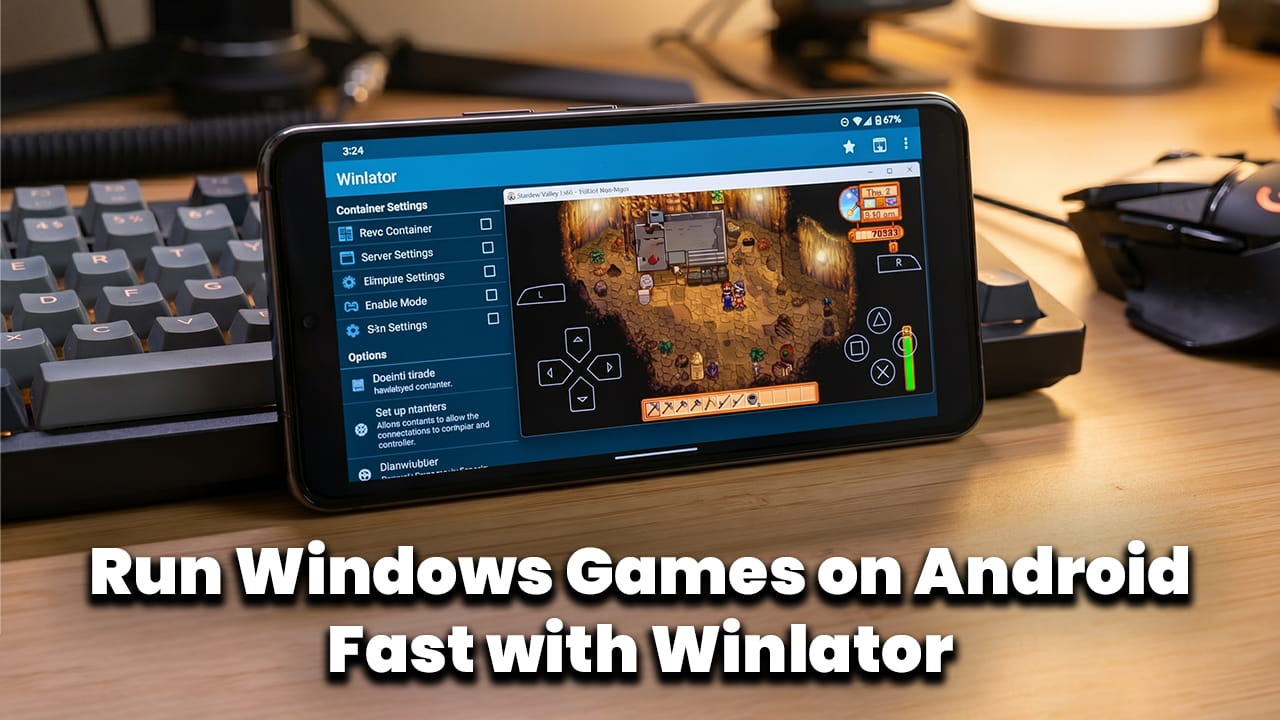
Winlator is an open-source app. It uses tools like Wine, Box86, and Box64. These tools help Android devices understand Windows programs. As a result, users can run Windows games on Android with better stability than before.
Understanding the Purpose and User Needs
Most users search for guides like this to learn step-by-step methods. They want clear answers. They also want working settings for their devices.
Some common questions appear often. For example, users ask if Winlator is safe. Others ask which phones can run Windows games on Android smoothly. In addition, many users face errors like “Container failed to start.”
Because of these needs, this guide focuses on simple steps. It also explains key settings. That way, users can play Windows games easily without confusion on Android.
Important Technical Basics
Before starting, it helps to understand some basic ideas. These ideas improve results when trying to run Windows games on Android.
First, driver choice matters a lot. VirGL and Turnip drivers work differently. Turnip works better on Snapdragon devices. So, choosing the right driver improves graphics.
Next, container setup is very important. Containers act like small Windows systems. Good CPU settings reduce heat and crashes.
Finally, file placement matters. Games must be in the correct folder. Without proper placement, Winlator cannot detect the game files.
Hardware Requirements for Winlator
Not every phone can handle this process. Some hardware is required to run Windows games on Android properly.
Processor
Snapdragon processors are the best choice. They support better GPU drivers. This helps games run more smoothly.
RAM
At least 8GB RAM is recommended. Less RAM may cause lag or crashes. More RAM allows stable gameplay.
Storage
Fast storage like UFS improves loading speed. Slow storage can delay game startup.
Because of these factors, choosing the right device is very important. Without good hardware, it becomes harder to run Windows games on Android.
Step-by-Step Installation Guide
The setup process may look complex at first. However, each step is simple when followed carefully.
Download and Install
First, download the Winlator APK file. Install it like any normal Android app.
OBB Setup
Next, place the OBB file in the correct folder:
Internal Storage → Android → obb → com.winlator
If the folder does not exist, create it manually.
First Launch
After that, open the app. It will extract the required files. This step may take time.
Once done, the system becomes ready to run Windows games on Android.
Winlator Features
Understanding Winlator Features helps improve performance. These features give control over many settings.
Custom Controls
Users can create virtual gamepads. These controls help play games easily on touch screens.
Resolution Scaling
Lower resolution improves performance. Higher resolution improves visuals. Balance is important.
Experimental Drivers
Winlator allows new Mesa Turnip drivers. These drivers support DirectX 11 and 12 games better.
Because of these Winlator Features, users can adjust settings based on their device. This flexibility helps to run games on Android more smoothly.
Creating and Configuring Containers
Containers act as virtual Windows systems. Without them, games cannot run.
Screen Size
Set resolution to 800×600 or 1280×720. These settings work well on mobile screens.
Graphics Driver
Snapdragon users should select Turnip (Adreno). It gives better performance.
DXWrapper
DXVK 2.2 or higher works for most 3D games. However, some games need different options.
Proper container setup is very important. It directly affects the ability to run Windows games on Android without issues.
How to Load and Run Games
After setup, the next step is adding games.
First, transfer game files to the Download folder. DRM-free games work best.
Next, open Winlator. The Download folder appears as Drive D.
Then, open the container. Go to Drive D. Find the .exe file and run it.
This process allows users to run Windows games on Android easily. However, some games may still need tweaks.
Performance Optimization Tips
Many users face performance problems. However, small changes can improve results.
CPU Affinity
Uncheck CPU 0 in settings. This allows background tasks to run smoothly.
Audio Buffer
Increase buffer size if sound breaks. This reduces audio lag.
Video Memory
Set video memory to 2048MB if possible. Higher values improve graphics stability.
Because of these changes, devices can better run Windows games on Android without lag.
Comparison with Other Emulators
Different tools exist for this purpose. However, each one works differently.
Winlator
Easy to use. Clean interface. Good performance for most users.
ExaGear
Old and outdated. Requires manual setup. Less support.
Mobox
Better performance in some cases. However, setup is harder.
Even though Mobox can be faster, many users prefer Winlator. Its simple design helps more people run Windows games on Android without technical stress.
Troubleshooting Common Problems
Problems can happen during setup or gameplay. However, most issues have simple fixes.
Black Screen Issue
This often happens due to the wrong DXWrapper. Switching to WineD3D or CNC-DDRAW can help.
Game Not Launching
Check file placement. Make sure the .exe file is in Drive D.
Crashes
Reduce resolution or change drivers. Lower settings improve stability.
Because of these fixes, users can continue trying to run Windows games on Android without giving up.
Final Thoughts
Winlator has changed mobile gaming in a big way. It allows users to run Windows games on Android with more control and stability.
However, success depends on proper setup. Hardware, drivers, and settings all play important roles.
Some trial and error is normal. Not every game will work perfectly. Still, many popular PC games can run well.
As mobile hardware improves, this process will become easier. Over time, more users will be able to run Windows games on Android without complex steps.
For now, Winlator remains one of the best tools available. It gives users a chance to enjoy PC gaming anywhere.